
“What authenticator app does Shopify use?”
This is the confusion behind the search. Shopify hasn’t built its own authenticator app — and it doesn’t need to. Two-step authentication uses an open standard called TOTP (time-based one-time passwords), so any standards-compliant app generates the 6-digit codes Shopify asks for. You scan a QR code once, and from then on the app produces a fresh code every 30 seconds. That means your only real decision is which app to install. Here are the three worth your time, each shown from its official page.
1. Google Authenticator
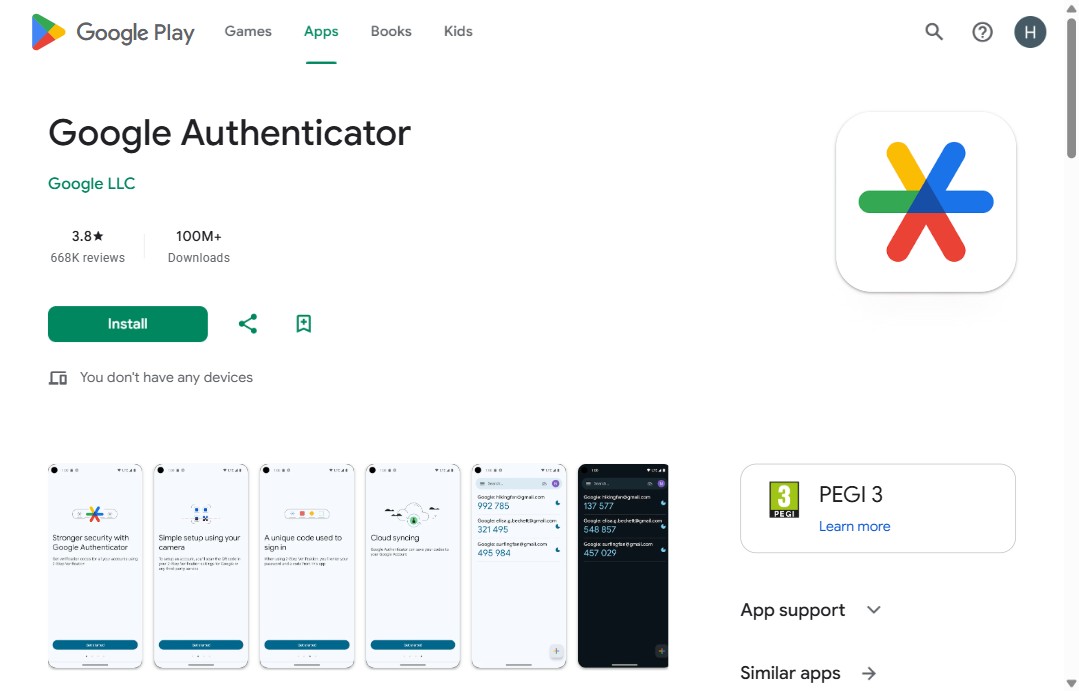
Avantages (Pros)
- The simplest option — install, scan Shopify’s QR code, done.
- Free, from Google, on both iOS and Android with 100M+ installs.
- Now supports cloud sync, so codes survive a lost or replaced phone.
Inconvénients (Cons)
- Bare-bones — no app lock/PIN by default, minimal organization for many accounts.
- Fewer multi-device features than Authy.
Bilan (Verdict) — The default pick for most Shopify merchants. If you just want reliable 2FA with zero learning curve, start here.
2. Authy
Avantages (Pros)
- Multi-device sync — your codes on phone, tablet and desktop at once.
- Encrypted cloud backups, so a lost phone doesn’t lock you out.
- Optional PIN/biometric app lock for an extra layer.
Inconvénients (Cons)
- Backups and multi-device add setup steps (and a slightly larger attack surface if misconfigured).
- Owned by Twilio — an account tied to your phone number, which some prefer to avoid.
Bilan (Verdict) — The best choice if you log in from several devices or want bullet-proof backups. Ideal for merchants who’ve been locked out before.
3. Microsoft Authenticator
Avantages (Pros)
- Strong, polished app with cloud backup and biometric lock built in.
- Natural fit if your team already uses Microsoft 365 / Entra accounts.
- Free, well-maintained, works with any TOTP site including Shopify.
Inconvénients (Cons)
- Heavier than Google Authenticator; nudges you toward a Microsoft account.
- Some features are geared to Microsoft logins you may not use.
Bilan (Verdict) — The right pick for teams already inside the Microsoft ecosystem. For a solo store, it’s more than you need but works perfectly.
Honourable mentions: if you already use a password manager, 1Password can store your Shopify TOTP alongside your password, and Duo Mobile is common in larger organizations. Both work with Shopify the same way.
How to set up two-step authentication on Shopify
- Open your Shopify account security settings (your account, not just the store).
- Choose to add a two-step authentication method and select Authenticator app.
- Scan the QR code Shopify shows with the app you installed above.
- Enter the 6-digit code the app generates to confirm.
- Save your recovery codes somewhere safe — they’re your way back in if you lose your phone.
Beyond authenticator apps
Shopify also supports passkeys and security keys (WebAuthn) — logging in with a fingerprint, Face ID or a hardware key like a YubiKey — which are as strong or stronger than an authenticator app. SMS codes are still offered, but they’re the weakest option (vulnerable to SIM-swap attacks). For a store, use an authenticator app or a passkey as your minimum, and keep SMS only as a backup.
Frequently asked questions
What authenticator app does Shopify use?
None of its own — Shopify uses the open TOTP standard, so it works with Google Authenticator, Authy, Microsoft Authenticator, 1Password and others.
What’s the best authenticator app for Shopify?
Google Authenticator for simplicity, Authy for multi-device and backups, Microsoft Authenticator for Microsoft-based teams. All three work identically with Shopify.
Is an authenticator app better than SMS?
Yes — SMS codes can be intercepted via SIM-swap. An authenticator app or a passkey is the recommended minimum for a store.
How do I set it up?
In Shopify account security, add a two-step method, choose Authenticator app, scan the QR code, enter the 6-digit code, and save your recovery codes.
 Install on Shopify